You build a flowchart by setting the Template to "Flowchart" and setting the ShapeConnectorType on each shape's connector to "Flowchart".
{
  "Version": "1.0",
  "Template": "Flowchart",
  "McpGenerated": true,
  "KeepDocument": true,
  "Shape": {
    "ID": 1,
    "Label": "First Shape",
    "ShapeConnector": [
      {
        "ShapeConnectorType": "Flowchart",
        "Shapes": [
          { "ID": 2, "Label": "Second Shape" },
          { "ID": 3, "Label": "Third Shape" }
        ]
      }
    ]
  }
}
Note that, by default, a flowchart connector has an arrowhead pointing way from the parent shape of the connector.
By default, the direction of a connector is "Right".
Unlike trees, flowcharts can have multiple ShapeConnector entries per shape.
Adding a second ShapeConnector to the first shape with a Direction property of "Bottom" adds a second list of shapes to the first shape.
{
  "Version": "1.0",
  "Template": "Flowchart",
  "McpGenerated": true,
  "KeepDocument": true,
  "Shape": {
    "ID": 1,
    "Label": "First Shape",
    "ShapeConnector": [
      {
        "ShapeConnectorType": "Flowchart",
        "Direction": "Right",
        "Shapes": [
          { "ID": 2 },
          { "ID": 3 }
        ]
      },
      {
        "ShapeConnectorType": "Flowchart",
        "Direction": "Bottom",
        "Shapes": [
          { "ID": 4 },
          { "ID": 5 }
        ]
      }
    ]
  }
}
Two or more connectors in the same direction create a split path:
{
  "Version": "1.0",
  "Template": "Flowchart",
  "McpGenerated": true,
  "KeepDocument": true,
  "Shape": {
    "ID": 1,
    "Label": "First Shape",
    "ShapeConnector": [
      {
        "ShapeConnectorType": "Flowchart",
        "Direction": "Right",
        "Shapes": [
          { "ID": 2 },
          { "ID": 3 }
        ]
      },
      {
        "ShapeConnectorType": "Flowchart",
        "Direction": "Right",
        "Shapes": [
          { "ID": 4 },
          { "ID": 5 }
        ]
      }
    ]
  }
}
Using a split path is a nice way to represent a decision.
Here's three connectors in three directions:
{
  "Version": "1.0",
  "Template": "Flowchart",
  "McpGenerated": true,
  "KeepDocument": true,
  "Shape": {
    "ID": 1,
    "Label": "First Shape",
    "ShapeConnector": [
      {
        "ShapeConnectorType": "Flowchart",
        "Direction": "Right",
        "Shapes": [
          { "ID": 2 },
          { "ID": 3 }
        ]
      },
      {
        "ShapeConnectorType": "Flowchart",
        "Direction": "Bottom",
        "Shapes": [
          { "ID": 4 },
          { "ID": 5 }
        ]
      },
      {
        "ShapeConnectorType": "Flowchart",
        "Direction": "Left",
        "Shapes": [
          { "ID": 6 },
          { "ID": 7 }
        ]
      }
    ]
  }
}
Each Shape attached to a ShapeConnector can itself have a ShapeConnector to create flows that visualize complex data.
This flowchart:
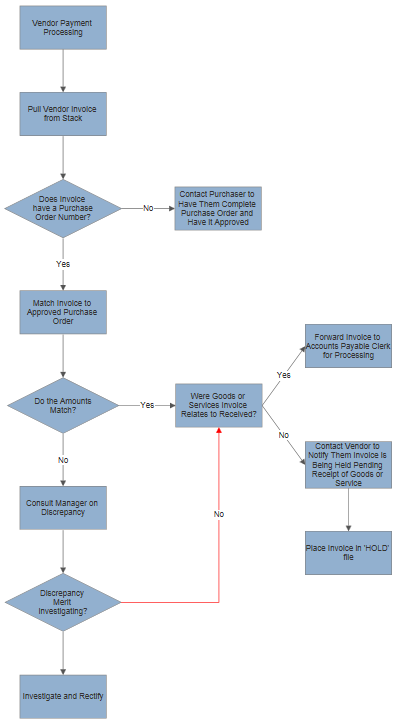
is built with this VSON:
{
  "Version": "1.0",
  "Template": "Flowchart",
  "McpGenerated": true,
  "KeepDocument": true,
  "Shape": {
    "ID": 1,
    "Label": "Vendor Payment Processing",
    "TextMargin": 10,
    "ShapeConnector": [
      {
        "ShapeConnectorType": "Flowchart",
        "Direction": "Bottom",
        "Shapes": [
          { "ID": 2, "Label": "Pull Vendor Invoice from Stack" },
          {
            "ID": 3,
            "Label": "Does Invoice have a Purchase Order Number?",
            "ShapeType": "Diamond",
            "ShapeConnector": [
              {
                "ShapeConnectorType": "Flowchart",
                "Direction": "Right",
                "Shapes": [
                  { "ID": 9, "Label": "Contact Purchaser to Have Them Complete Purchase Order and Have it Approved", "LineLabel": "No" }
                ]
              }
            ]
          },
          { "ID": 4, "Label": "Match Invoice to Approved Purchase Order", "LineLabel": "Yes" },
          {
            "ID": 5,
            "Label": "Do the Amounts Match?",
            "ShapeType": "Diamond",
            "ShapeConnector": [
              {
                "ShapeConnectorType": "Flowchart",
                "Direction": "Right",
                "Shapes": [
                  {
                    "ID": 10,
                    "Label": "Were Goods or Services Invoice Relates to Received?",
                    "ShapeType": "Diamond",
                    "LineLabel": "Yes",
                    "ShapeConnector": [
                      {
                        "ShapeConnectorType": "Flowchart",
                        "Direction": "Right",
                        "Shapes": [
                          { "ID": 11, "Label": "Forward Invoice to Accounts Payable Clerk for Processing", "LineLabel": "Yes" }
                        ]
                      },
                      {
                        "ShapeConnectorType": "Flowchart",
                        "Direction": "Right",
                        "Shapes": [
                          {
                            "ID": 12,
                            "Label": "Contact Vendor to Notify Them Invoice is Being Held Pending Receipt of Goods or Service",
                            "LineLabel": "No",
                            "ShapeConnector": [
                              {
                                "ShapeConnectorType": "Flowchart",
                                "Direction": "Bottom",
                                "Shapes": [
                                  { "ID": 13, "Label": "Place Invoice in 'HOLD' file" }
                                ]
                              }
                            ]
                          }
                        ]
                      }
                    ]
                  }
                ]
              }
            ]
          },
          { "ID": 6, "Label": "Consult Manager on Discrepancy", "LineLabel": "No" },
          { "ID": 7, "Label": "Discrepancy Merit investigating?", "ShapeType": "Diamond" },
          { "ID": 8, "Label": "Investigate and Rectify" }
        ]
      }
    ]
  },
  "Returns": [
    {
      "StartID": 7,
      "EndID": 10,
      "StartDirection": "Right",
      "EndDirection": "Bottom",
      "Label": "No",
      "LineColor": "#FF0000",
      "EndArrow": 1
    }
  ]
}
Let's look at how this is constructed.
We start with the shape labeled "Vendor Payment Processing" and add a single ShapeConnector with seven shapes with Direction "Bottom". This creates this part of the chart:

There are two labels on this connector: "Yes" before the "Match Invoice to Approved Purchase Order" shape and "No" before the "Consult Manager on Discrepancy" shape. These are added by setting a LineLabel property on the shape itself:
{ "ID": 4, "Label": "Match Invoice to Approved Purchase Order", "LineLabel": "Yes" }
and
{ "ID": 6, "Label": "Consult Manager on Discrepancy", "LineLabel": "No" }
The shapes before these labels are decisions and are drawn as diamonds. The outline of a shape is set with the ShapeType property. Standard types include "Diamond", "Oval", and others.
{
  "ID": 3,
  "Label": "Does Invoice have a Purchase Order Number?",
  "ShapeType": "Diamond"
}
A second ShapeConnector is also added to each decision in perpendicular direction (Right):
{
  "ID": 3,
  "Label": "Does Invoice have a Purchase Order Number?",
  "ShapeType": "Diamond",
  "ShapeConnector": [
    {
      "ShapeConnectorType": "Flowchart",
      "Direction": "Right",
      "Shapes": [
        { "ID": 9, "Label": "Contact Purchaser to Have Them Complete Purchase Order and Have it Approved", "LineLabel": "No" }
      ]
    }
  ]
}
Note that the shape on the perpendicular connector has a LineLabel of "No" that appears in front of it.
The line from the shape labeled "Discrepancy Merit investigating?" to the shape labeled "Were Goods or Services Invoice Relates to Received" is called a "Return". Returns are added to the document's Returns array and refer to the ID of the starting shape and the ID of the ending shape.
The line comes out of the right side of the starting shape, ends by going into the bottom side of the ending shape, and is shown in red for clarity.
{
  "Returns": [
    {
      "StartID": 7,
      "EndID": 10,
      "StartDirection": "Right",
      "EndDirection": "Bottom",
      "Label": "No",
      "LineColor": "#FF0000",
      "EndArrow": 1
    }
  ]
}
ShapeConnector makes it easy to create trees and flowcharts, but there are many kinds of charts that don't have a set structure for connections. For example:
- Network diagrams
- ERD Diagrams
- Class Diagrams
- Planograms
- Project schedules
- Grids
You can build all of these and more with VSON using the ShapeContainer and Table objects.